Many websites nowadays have included the password strength meter and the validation of password confirmation when users are registering their accounts from the registration page. I like those features, because in addition very useful in order to help users to ensure that the password that they are entering is good or strong enough as recommended for the security reason, it also helpful to ensure that the password confirmation is match with the password that already entered earlier. Another advantage for users is that they will feel comfortable while entering their password, and again your web application will look more professional for them.
Unfortunately, PHPMaker has not included this features up to version 8.0.3. So this following trick will add those features on the generated Registration page. I repeat: on the generated Registration page. Since the template for the registration page will be generated based on the selected fields that shown on the User Login Options in Security menu of PHPMaker application, then the registration page will be generated based on the hardcoded by PHPMaker. I cannot customize the certain part of the Password element because of the hardcoded by PHPMaker. I hope someday I will update this article by customizing the template file even it will take the longer time. We only customize the template in order to add the related style code.
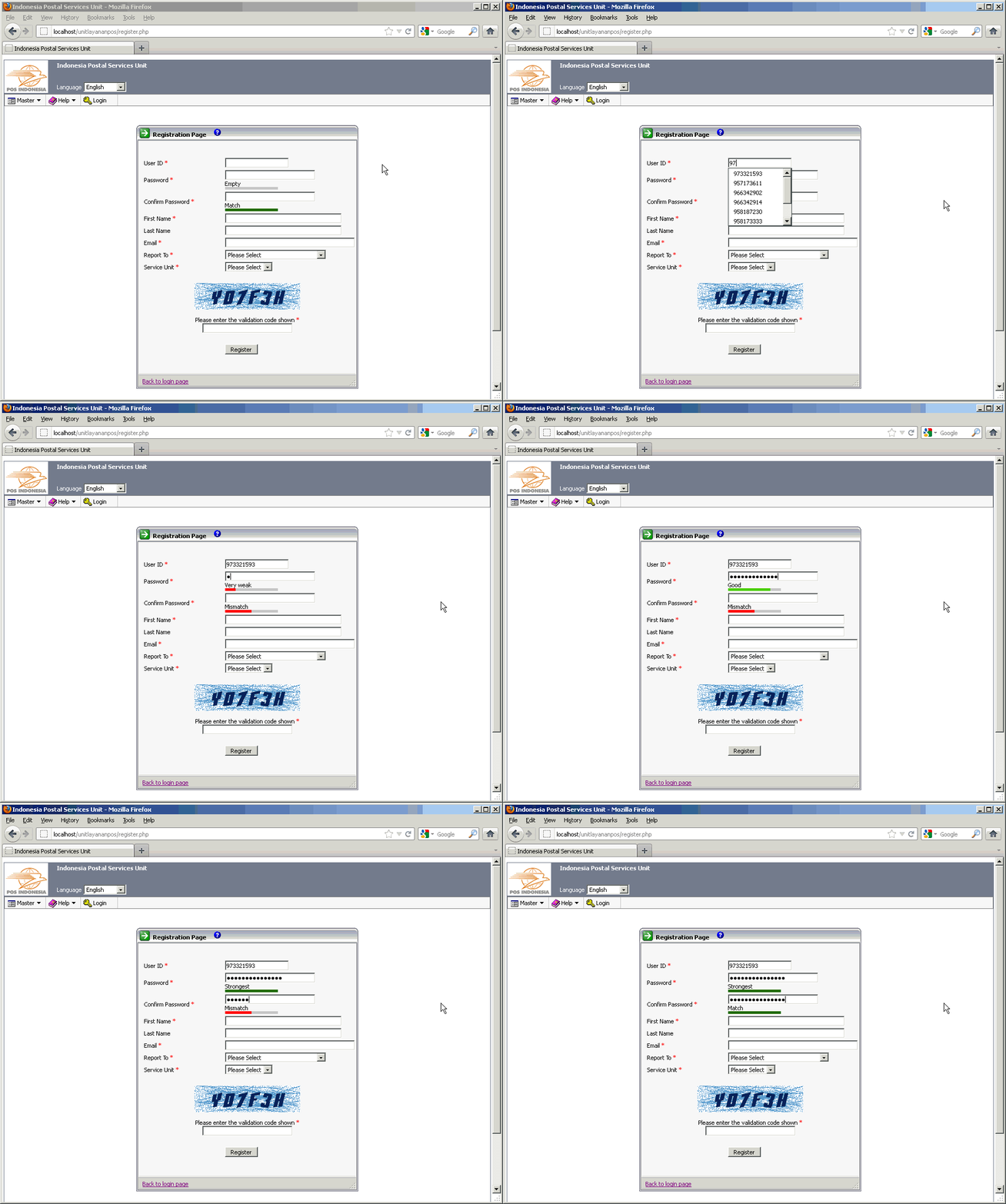
Now let's go back to the features that we are talking about! When user is typing in the Password textbox on the Registration page, then the password strength meter will inform him/her whether the password that he is typing is: Empty, Very Weak, Weak, Better, Good, Strong, or Strongest. Actually, this will encourage user to try to enter the recommended password. This password meter will be shown in the bar graph format with the status text beneath it. Each status will be represented by the related color. This password meter will be located below the Password textbox. Whereas, the status for the validation password confirmation will be located below the Confirm Password textbox.
Please click on the following image below to watch the demo:
[hidepost]
-
Open your PHPMaker project (.pmp) file using PHPMaker application, and then click on Database icon on the toolbar, and click on your users table, and then go to the Server Events/Client Scripts tab. Expand the Client Scripts -> Other -> Registration Page -> Client Script, and then insert the following code into the code editor in the right side:
function passwordConfirmation(pass1, pass2) { var desc = new Array(); desc[0] = "<?php echo $Language->Phrase("mismatch"); ?>"; desc[1] = "<?php echo $Language->Phrase("match"); ?>"; // var score = 0; if (pass1 != pass2) { score = 0; } else { score = 1; } document.getElementById("passconfDescription").innerHTML = desc[score]; document.getElementById("passconfConfirmation").className = "conf" + score; } function passwordStrength(password, password2) { var desc = new Array(); desc[0] = "<?php echo $Language->Phrase("empty"); ?>"; desc[1] = "<?php echo $Language->Phrase("veryweak"); ?>"; desc[2] = "<?php echo $Language->Phrase("weak"); ?>"; desc[3] = "<?php echo $Language->Phrase("better"); ?>"; desc[4] = "<?php echo $Language->Phrase("good"); ?>"; desc[5] = "<?php echo $Language->Phrase("strong"); ?>"; desc[6] = "<?php echo $Language->Phrase("strongest"); ?>"; var descc = new Array(); descc[0] = "<?php echo $Language->Phrase("mismatch"); ?>"; descc[1] = "<?php echo $Language->Phrase("match"); ?>"; var score = 1; //if password is empty, reset the score if (password.length == 0) score=0; //if password bigger than 6 give 1 point if (password.length > 6) score++; //if password has both lower and uppercase characters give 1 point if ( ( password.match(/[a-z]/) ) && ( password.match(/[A-Z]/) ) ) score++; //if password has at least one number give 1 point if (password.match(/\d+/)) score++; //if password has at least one special caracther give 1 point if ( password.match(/.[!,@,#,$,%,^,&,*,?,_,~,-,(,)]/) ) score++; //if password bigger than 12 give another 1 point if (password.length > 12) score++; document.getElementById("passwordDescription").innerHTML = desc[score]; document.getElementById("passwordStrength").className = "strength" + score; var scorec = 0; if (password != password2) { scorec = 0; } else { scorec = 1; } document.getElementById("passconfDescription").innerHTML = descc[scorec]; document.getElementById("passconfConfirmation").className = "conf" + scorec; } -
Open your C:\Program Files\PHPMaker 8\languages\english.xml file, and find this code:
</global>
before the first line of that code, please insert the following code:
		<phrase id="mismatch" value="Mismatch"/>
		<phrase id="match" value="Match"/>
		<phrase id="empty" value="Empty"/>
		<phrase id="veryweak" value="Very weak"/>
		<phrase id="weak" value="Weak"/>
		<phrase id="better" value="Better"/>
		<phrase id="good" value="Good"/>
		<phrase id="strong" value="Strong"/>
		<phrase id="strongest" value="Strongest"/>
Do the same step with the other .xml file you have. For example, I am also using Indonesian language, then I will insert the following code into C:\Program Files\PHPMaker 8\languages\indonesian.xml file:
		<phrase id="mismatch" value="Tidak cocok"/>
		<phrase id="match" value="Cocok"/>
		<phrase id="empty" value="Kosong"/>
		<phrase id="veryweak" value="Sangat lemah"/>
		<phrase id="weak" value="Lemah"/>
		<phrase id="better" value="Lumayan"/>
		<phrase id="good" value="Bagus"/>
		<phrase id="strong" value="Kuat"/>
		<phrase id="strongest" value="Sangat kuat"/>
-
The next step, we will add the related style for the graph meter by customizing the template file. Please note that the customization in this step also will be used for the Change Password page. Now open your \Script\phpcommon-scripts.php file and find this code:
<!--##session phpunload##-->
after the last line of that code, please insert the following code:
<!--## If LCase(CTRL.CtrlID) = "register" Or LCase(CTRL.CtrlID) = "changepwd" Then ##--> <style> .password-meter { position:relative; width: 180px; } .password-meter-message { text-align: right; font-weight: bold; color: #676767; } .password-meter-bg, .password-meter-bar { height: 5px; width: 100px; } .password-meter-bg { top: 8px; background: #cccccc; } #passconfConfirmation { height:5px; display:block; float:left; } .conf0 { width:50px; background:#ff0000; } .conf1 { background:#256800; width:100px; } #passwordStrength { height:5px; display:block; float:left; } .strength0 { background:#cccccc; width:100px; } .strength1 { background:#ff0000; width:20px; } .strength2 { background:#ff5f5f; width:40px; } .strength3 { background:#56e500; width:60px; } .strength4 { background:#4dcd00; width:80px; } .strength5 { background:#399800; width:90px; } .strength6 { background:#256800; width:100px; } </style> <!--## End If ##--> - Generate your register.php, english.xml, and indonesian.xml (please adjust with yours) files using PHPMaker application. Make sure you do not skip this step, otherwise, you will never get the code in the first and second step above in your generated register.php file, also you will never get the updated language files.
-
Open your generated register.php file (not template!) that has been just generated in the third step above (warning again: make sure you do not skip the second step above), and then find this code (Please note that the following code may vary in your generated registration page, since the field name, the size, and the maxlength of the password field can be different. Assuming the password field name in your users table is password, and either the size or the maxlength of password field property is 30 - please adjust the following code):
<input type="password" name="x_password" id="x_password" size="30" maxlength="30" <?php echo $users->password->EditAttributes() ?>>
then replace it with the following code:
<input type="password" name="x_password" id="x_password" size="30" maxlength="30" <?php echo $users->password->EditAttributes() ?> onkeyup="passwordStrength(this.value, c_password.value)"> <div id="passwordDescription"><?php echo $Language->Phrase("empty"); ?></div> <div class="password-meter-bg"> <div id="passwordStrength" class="strength0"></div> </div> -
Still in your generated register.php file, find again this code:
<input type="password" name="c_password" id="c_password" size="30" maxlength="30"<?php echo $users->password->EditAttributes() ?>>
then replace it with the following code:
<input type="password" name="c_password" id="c_password" size="30" maxlength="30"<?php echo $users->password->EditAttributes() ?> onkeyup="passwordConfirmation(x_password.value, this.value)">
    <div id="passconfDescription"><?php echo $Language->Phrase("match"); ?></div>
    <div class="password-meter-bg">
      <div id="passconfConfirmation" class="conf1"></div>
    </div>
[/hidepost]
Will this work on 9.0.2
Generally, yes. However, if you want to implement it on version 9.0.2, then please read this article that I wrote yesterday.